





Real practice labs inside your coding course

Each student opens a coding environment right in your lesson, ready in seconds. Nothing to install, and no servers for you to run.

Opens an email to [email protected]

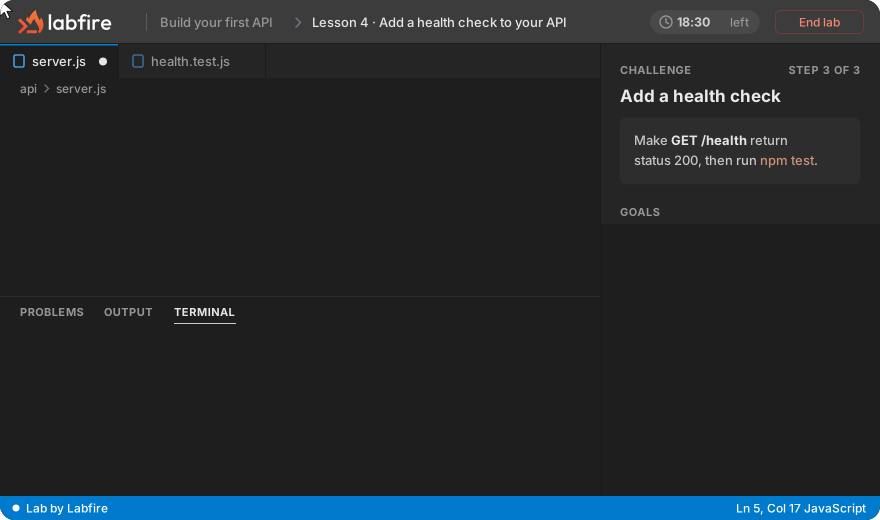
The student fixes a failing health check: the test fails with a 500, the code is changed to 200 and the test passes
Animated recreations of Labfire labs on sample courses. Each goal turns green when the student's work passes the check.

Read the lesson, then practice on the same page

Your lesson and the lab sit in the same page, with your brand on both.

cloud pathBuild your first APILessonPractice

4 min read

Add a health check to your API

A health check is a small route that tells the outside world your API is up. Load balancers and deploy tools call it every few seconds and stop sending traffic when it fails.

Add a GET /health route that answers 200 with a short JSON body. Keep it fast and skip the database, so it still answers when the rest of the app is busy.

app.js
app.get("/health", (req, res) => {
  res.json({ ok: true });
});
Now practiceAdd a health check to your APIOpen lab

Sample course and sample students.

What your students get

  • Side by side: a local install that fails with errors, and the same lab opening in the lesson page right away

    Nothing to install

    A recent browser is enough, so lesson one starts with the exercise and not with a broken setup.

  • The lab goals panel: the student clicks Check, one goal fails with a hint, then both pass and the lab completes

    A check on every step

    Each step confirms the result, like a passing test or a pod in Running, so students know they got it right.

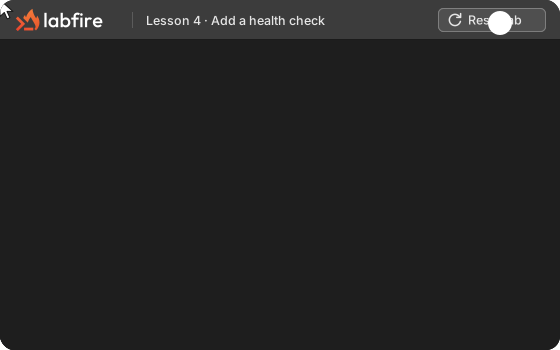
  • The student deletes every file by mistake, clicks Reset lab and gets a clean lab back

    A clean lab every time

    If they break something, they start over in a fresh environment. Nobody else's mistakes get in their way.

Try a real lab, right now.

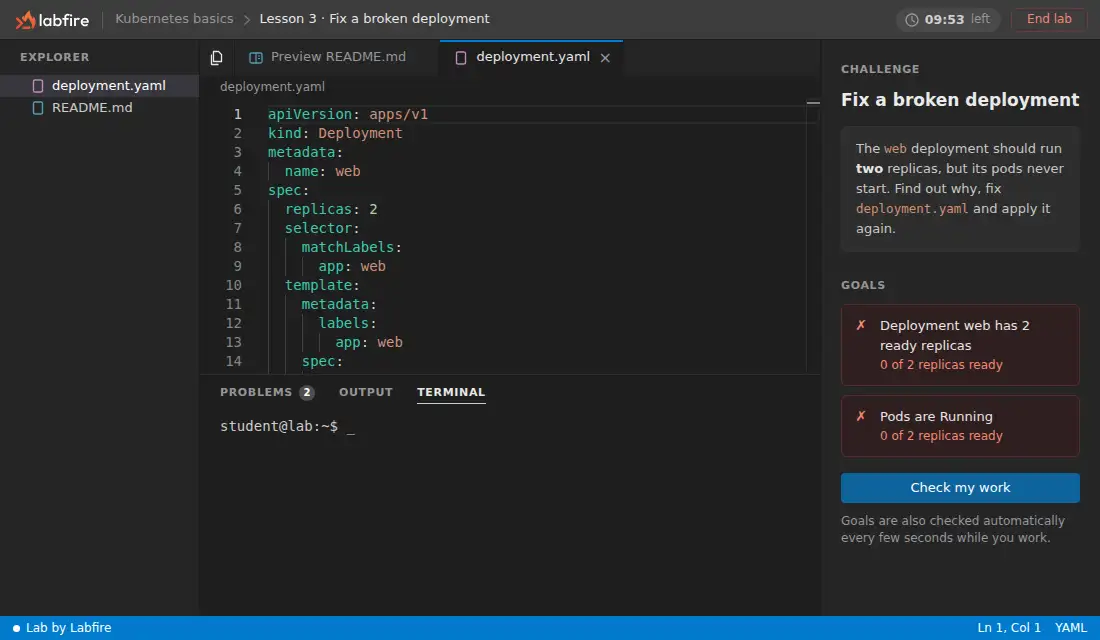
This is the lab your students get, with the editor, the terminal and goals that turn green. No signup. Fix the broken deployment and watch the checks pass.

A real Kubernetes lab with an editor, a terminal and goals that turn green. It starts in a few seconds and lasts 10 minutes.

Three steps from lesson to lab

You bring the lesson. Labfire gives you the environment, the checks and the embed.

  1. The creator picks an environment template and selects the Node app

    Step 1. Pick an environment

    Start from a tested template, like a Node app, a Linux shell, a Kubernetes cluster or a Python workspace.

  2. The creator types the exercise instructions, the checks appear and the exercise is approved

    Step 2. Write the exercise and its checks

    Say what the student should do and what counts as done. The assistant can draft both, and nothing goes live until you try the lab and approve it.

  3. The creator copies the embed code and the lab appears inside the lesson page

    Step 3. Paste the lab into your lesson

    Copy the embed into your course page. Each student opens a fresh lab of their own.

Build it your way, test it before students do.

Let the assistant draft the lab, or write every step yourself. Either way, a real run proves each check before you publish.

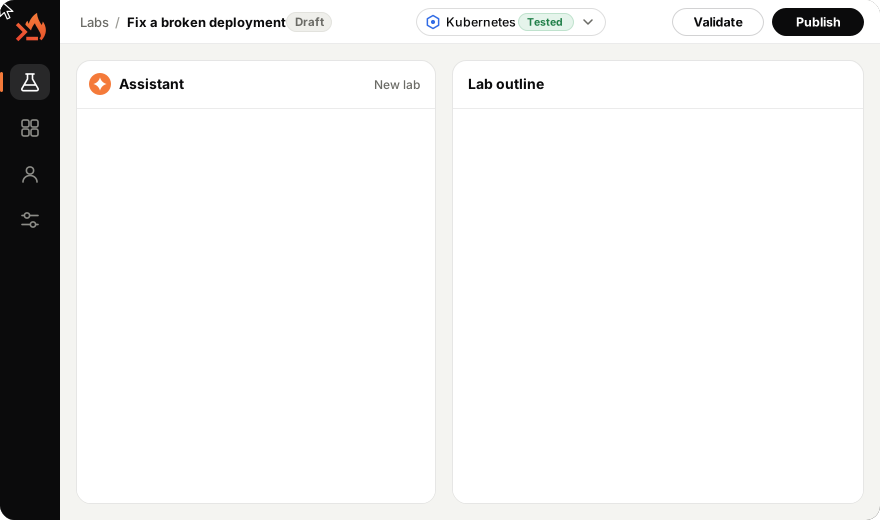
Describe the lab in a sentence and the assistant drafts it. You review and approve every step.

Describe the lab

Say what students should learn. The assistant drafts the starting state, the steps with checks and hints, and a solution.

Labfire Studio: the creator describes a beginner Kubernetes lab about a deployment that will not start, and the assistant drafts the starting state, three steps with checks and hints, and a solution, each marked Drafted for review

Animated recreation of Labfire Studio, part of early access. Every check is proven on a real run before you publish.

Labs for the stack you teach

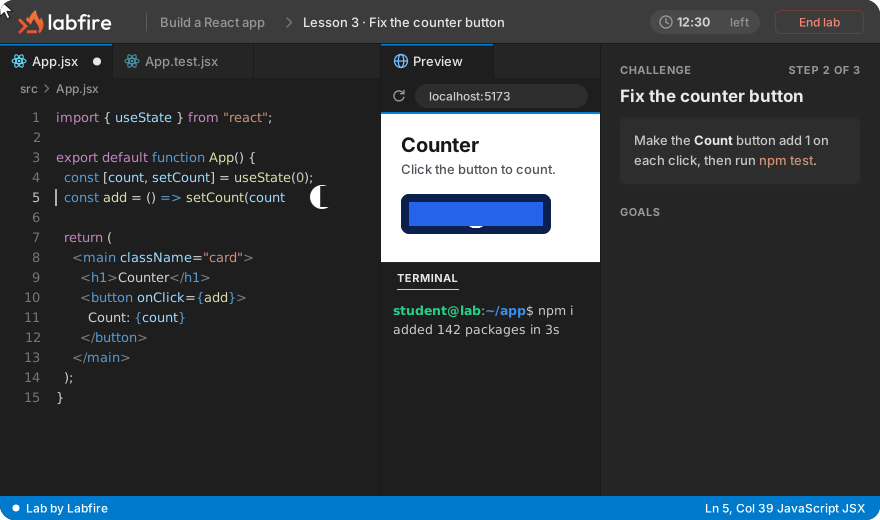
Pick a stack and watch a lab for it. Each template comes with the tools already installed.

A React lab where the counter button does nothing, the student fixes setCount in App.jsx, the preview counts up, npm test passes and the goals turn green

Logos are trademarks of their owners and only show which technologies a lab can teach.

See who finished and who's stuck

Every lab reports progress step by step, so you can help a student before they give up.

  • Progress for every student on every lab
  • The exact step where someone is stuck
  • The same checks your students see
cloud pathBuild your first API
StudentStatus
Ana P.
Finished
Luis R.
Finished
Kenji M.
Step 2 of 3
Sam K.
Stuck on step 1
Noor A.
Not started

Sample students and stock photos.

You set the price, we take no cut

Students pay you on the checkout you already use. Labfire never touches your course payments.

  • A higher-priced tier

    Keep the videos in your base price and put the labs in a tier that costs more.

  • A monthly lab subscription

    Publish new labs every month and charge for them as a subscription.

  • A paid cohort with weekly labs

    Each week the whole group starts on the same lab, and the checks show you who finished.

What you earn depends on your audience and your price, and Labfire can't promise a number.

A creator's course page where a student enrolls and the lab unlocks under the creator's own logo
Early-access pricing

Simple plans with lab hours included

One lab hour is one student environment running for one hour. You pay your plan and any extra hours you allow, up to your cap, and never a cut of your sales.

Creator

For instructors selling a course on their own.

$49/ month

Request early access
  • Lab hours included every month
  • Extra hours billed at cost, up to a spend cap you set
  • An alert before you reach your cap
  • Unlimited labs and lessons
  • Step checks and student progress
  • Your logo and colors
  • Authoring assistant
  • Email support

Bootcamp

For bootcamps that teach live cohorts.

Custom

Talk to us
  • Everything in Creator
  • Custom lab hours and more concurrent labs for live classes
  • Per-lab limits for each cohort
  • Priority support

Tell us your cohort size and class schedule, and we'll reply with a quote by email.

  • No cut of your course sales
  • Extra hours stop at the spend cap you set
  • One environment per student, deleted when the lab ends
  • Nothing goes live until you approve it

Common questions

How do I get paid?

Students pay you on the checkout you already use, and Labfire doesn't handle course payments or take a cut. To give access, you share a link or a list of your students, and Labfire opens labs only for them.

How do lab hours work and what if I go over?

One lab hour is one student environment running for one hour, and your plan includes hours every month. Extra hours are billed at cost up to a spend cap you set, and you get an alert before you reach it.

How are students kept apart, and what happens when a lab ends?

Every student gets an environment of their own and shares nothing with the rest of the class. The lab is deleted when the session ends, so nothing in it is kept, and every exercise is designed to be finished within one session.

Does the AI build the labs for me?

No. The assistant drafts steps and checks from a closed catalog of environments we've tested, and nothing goes live until you review and approve it.

Will it work with my course platform?

The lab goes into your lesson as an embed snippet, so it needs a page where you can add custom HTML. Platforms differ on that, so tell us which one you use and we'll check it with you before you start.

Can I use Labfire today?

Labfire is in early access. Request access with any button on this page or write to [email protected], and we'll reply by email to talk about your course.

Add a real lab to your next lesson

Opens an email to [email protected]